

Item 1 of 2
 ₹https://wificonnections.hathway.com/hathway/bengaluru/g-m-playa/hathway-fiber-broadband-in-g-m-playa-bengaluru--4H9OQJ/home
No 198/1, MPS Mansion, Byrasandra Main RoadG M Playa, bengaluru560075in08062703044
773.1
Hathway Fiber Broadband, G M Playa, bengaluru
Internet Service Provider Store in G M Playa, Bengaluru, Karnataka
No 198/1, MPS Mansion, Byrasandra Main Road, G M Playa, bengaluru, karnataka - 560075
08062703044
Store Locator
Write ReviewsDrive Direction
Get a Call Back for a new connection
Explore Plans in Bengaluru
 334e5e77-e5d2-42c1-8717-82922fbf1266Premium plan3.177In stock400 MbpsPremium plan
400 Mbps
Effective Monthly Pricing₹ 999*Available in 2,3, 6 and 12 months options 39a9797a-f67b-434b-afeb-15aaff4634aaFamily Plan3.177In stock250 MbpsFamily Plan
250 Mbps
Effective Monthly Pricing₹ 929*Available in 2,3, 6 and 12 months options 57be75da-0c93-4758-bd4f-ac0a8dd4961aWFH plan3.177In stock200 MbpsWFH plan
200 Mbps
Effective Monthly Pricing₹ 850*Available in 2,3, 6 and 12 months options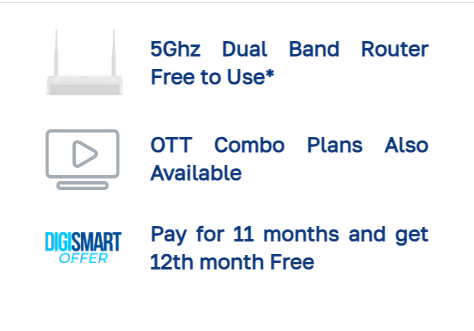 fac86b74-691f-4eba-97f3-6f22be6abe7eBeginner Plan3.177In stock125 MbpsBeginner Plan
125 Mbps
Effective Monthly Pricing₹ 749*Available in 2,3, 6 and 12 months options
Item 1 of 4
Videos
View all



01-09-2026
08-08-2026
Good
01-08-2026
very good speed
22-07-2026
08-07-2026
Vignesh was very profession and the speed is also coming as promised
25-06-2026
Good
25-06-2026
Good Fiber broadband
25-06-2026
Good service in Bangalore
Gallery
View all
About Brand
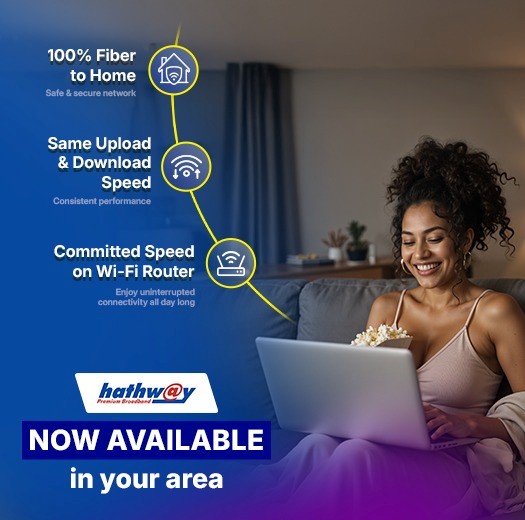
Hathway Cable & Datacom Limited (Hathway) is one of the India’s leading Cable Broadband service provider. It also provides Cable Television services through its wholly owned subsidiary – Hathway Digital Private Limited, which is one of the largest Multisystem operator in India.
Hathway holds a PAN India ISP license and was the first cable television services provider to offer High-speed cable broadband services across 16 cities (4 metros and 3 mini metros), having more than approx. 5.5 mn Home passed and 0.77 mn Subscribers as on Q1FY19.
Cable Television: One of India’s largest MSO, across various regions of the country and transmitting the same to LCOs or directly to subscriber’s Extensive network connecting 7.2 Mn digital cable subscribers / households across 350 cities and major towns.
Hathway has been awarded the best MSO by the Indian Telly Awards for its quality Cable TV and Broadband Internet Services nine times and "Star News Brand Excellence Awards for Brand Excellence in Digital Products for Internet Services in 2011". Hathway has been voted as one of the best managed media companies in Asia 2013 based on a study conducted by EUROMONEY.
Payment Methods
Services
Tags
Frequently Asked Questions
- Log-in to Hathway Self Care Portal on www.hathway.com
- Click on “Payments” tab on the Left Menu Bar .
- Check whether your Payment is reflecting .
- Online Payments usually get updated within 30 mins to 4 hrs. depending on the Bank / Payment Gateway . Payment thru Cash or Cheque takes 12 hrs. to 24 hrs. to get updated
- If your Payment is not reflecting then wait for the same to be updated

- If your payment is updated, then go to “My Dashboard” on the left menu bar.
- Check the renewal amount under "Current Plan”.
- If the amount you have paid is the same as your renewal amount, your account will get auto-activated within 30 minutes.
- If the amount paid by you is different you may need to pay the differential amount to get your account activated

- Log-in to Hathway Self Care Portal on www.hathway.com
- Go to “My Dashboard” in the Left Menu Bar .
- Click on “View More” under “ Current Plan”

- You will get the Renewal Amount and Your Plan Expiry Date under “SERVICE PLAN DETAILS”

- Log-in to Hathway Self Care Portal on www.hathway.com
- Go to “My Dashboard” in the Left Menu Bar .
- Click on “View More” under “ Current Plan

- Click on “RENEW” option on the Top left hand corner

- Check the total renewal amount.
- Select your preferred payment gateway.
- Click on “PROCEED TO PAYMENT."
- You will be redirected to the payment page.

- Log-in to Hathway Self Care Portal on www.hathway.com
- Go to “My Dashboard” in the Left Menu Bar .
- Click on “View More” under “ Current Plan

- Click on “UPGRADE” option on the Top left hand corner

- You will get the best-suited plan towards upgrading your account.
- Select your preferred plan and click on Proceed.

- Check the total renewal amount.
- Select your preferred payment gateway.
- Click on “PROCEED TO PAYMENT."
- You will be redirected to the payment page.

- Log-in to Hathway Self Care Portal on www.hathway.com
- Go to “Profiles” in the Left Menu Bar .
- You will get your Account Details showing your Registered Mobile No and Email Id.
- If you are having multiple Accounts with the same credentials then select the Account for which you wish to change the details .
- Click on the “Pen” symbol to update the new details.
- Click on the correct option from the bottom of the page to save your data .

- Click on the “ Change RMN” at the bottom.

- Enter your new Mobile No.

- Enter the OTP sent to your new Mobile No.

- Re-Login with your new credentials

- Log-in to Hathway Self Care Portal on www.hathway.com
- Go to “Profiles” in the Left Menu Bar .
- You will get your Account Details showing your Registered Mobile No and Email Id.

- Identify the Wifi Device Installed at your place . The Device name will be on the front side of the Device and the Model No will be mentioned at the Back Side.
- Choose the Device Type from the List mentioned below
INTEGRATED WI-FI DEVICES
- Device Make : ZTE Model No F660 Model No F602W Model No 612W
- Device Make : Genexis Model No Platinum 4410
WI-FI ROUTERS
- Router Make : TENDA Model No AC1200 A9
- Router Make : TP LINK Model No TL WR850N
- Router Make : DLINK Model No DIR615 , Model No DIR842
- Reset your ZTE ONU by pressing the “Reset” button with a pointed object for 10 seconds.
- The “Reset” button will be next to the “Power” button.
- Note down the Default WI-Fi user id and password mentioned at the back of the ONU.
- Click on the Wi-fi option in your system , chose the default user id as mentioned in your device.
- Type the default password mentioned in your device and connect.
- Once you are connected you may re-configure your Wi-Fi credentials by following the instructions mentioned below

- Connect to Wi – fi.
- Open the web browser (Internet Explorer/Mozilla Firefox) Type in the address bar 192.168.1.1.
- ZTE page will open.

- Enter User Name—"Admin”.
- Password (MAC ID without special characters)
- Enter the CAPTCHA as mentioned below.

- Connect to Wi – fi.
- Open the web browser (Internet Explorer/Mozilla Firefox) Type in the address bar 192.168.1.1.

- Connect to Wi-Fi.
- Open the web browser (Internet Explorer/Mozilla Firefox) . Type in the address bar 192.168.0.1.
- TENDA WIFI ROUTER page will open
- Please enter your current password in the box provided for the same and click on Login

- Connect to Wi-Fi. Open the web browser (Internet Explorer/Mozilla Firefox). Type in the address bar 192.168.0.1.
- Enter the default username “Admin” or your current username.
- Enter the default password, which may be the MAC ID of the Device , mentioned at the backside of the device, or your current password
